Posts by Raszagal88

    Buenas , tal vez me recuerden por la creación de herramientas para Gladiatus, como la creación de "El Libro del Administrador" gracias al cual se pueden planificar las donaciones a la alianza para mejorar los edificios sin tener que usar calculadora, ni tener que copiar a mano todos los datos que necesitamos para ello dado que la propia herramienta lo hace de forma automática.


    Viendo que todavía hay jugadores que desconocen los pergaminos que hay en el juego, he decidido compartir el Excel que yo uso, el cual contiene todos los prefijos y sufijos del juego. Cabe mencionar que el trabajo mío solo ha sido el de crear el Excel y ponerlo bonito, su contenido es extraído de internet.


    Espero que os sirva. Un beso feos.


    LISTADO DE PERGAMINOS

    Guide


    Cover Sheet


    Cover.PNG?dl=0


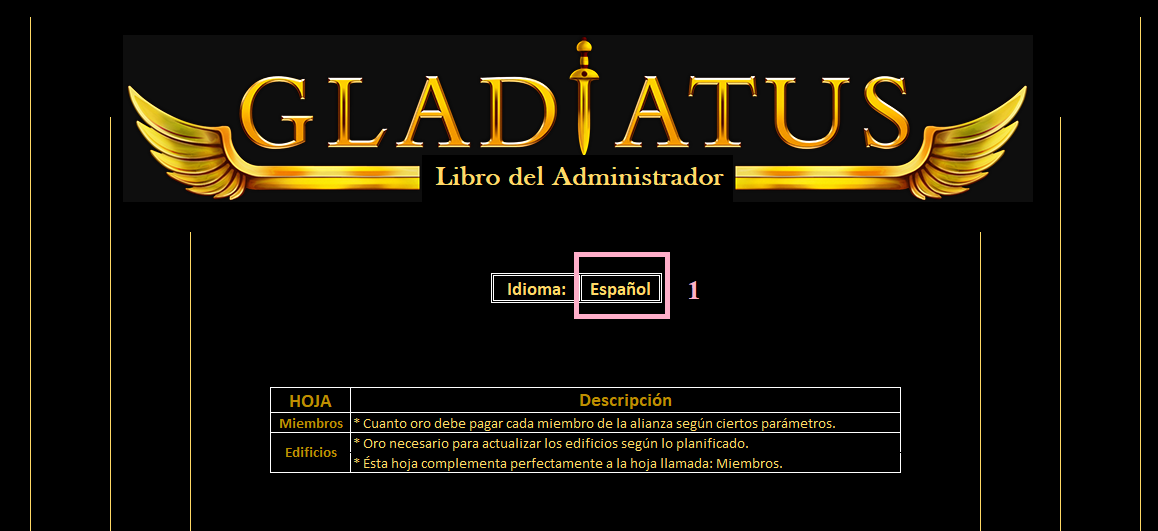
    1 Clicking on it, the language of the book can be changed.


    Members Sheet

    MembersSheet.png?dl=0


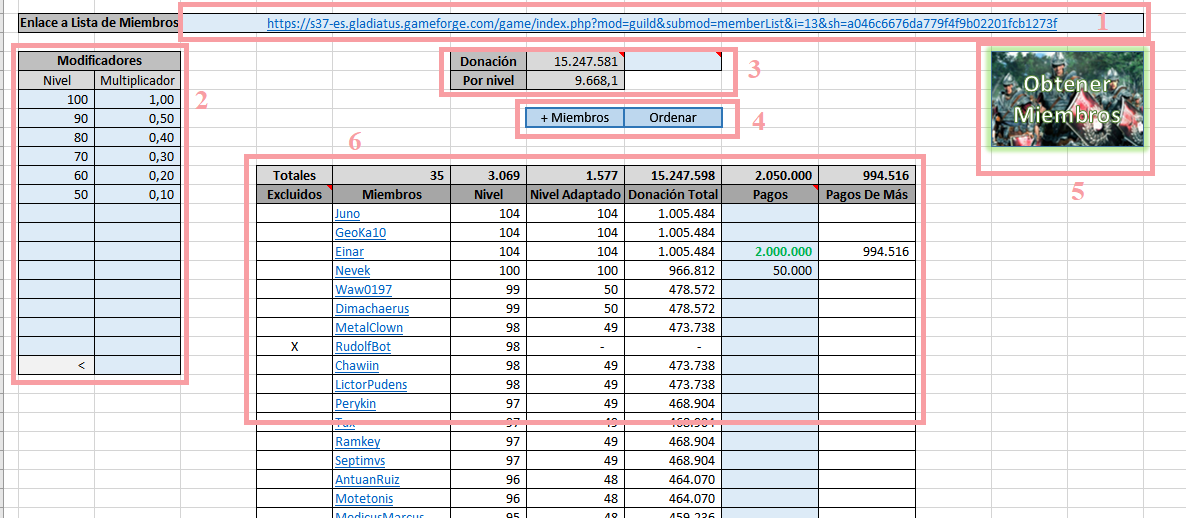
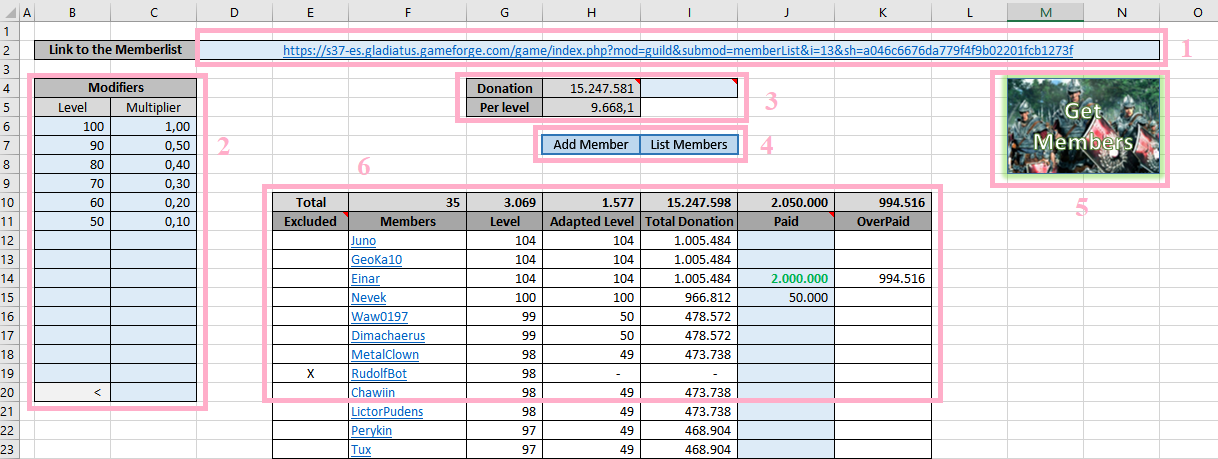
    1 It have to be introduced the link shown by the navigator when one is in the page of the alliance where all alliance members are displayed. As an example, to see which page we are referring to, this Excel has already a link included, so it can be pasted on the navigator to see which link is needed. Without the proper link, none of the macros of this Excel will work.


    2 This table is used to calculate how much should pay each member according to their level. In the image, a multiplier of 1 have been assigned to lv100+. Therefore, in the table 6, every level100+ contained in the column called level is multiplied by 1 obtaining the adapted level (forth column of the table6). Another example, a multiplier of 0.5 is assigned to members from levels 90 to 99, so Waw0197 (level99) have an adapted level = level * multiplier = 99 * 0.5 = 50. The result will be always rounded up.


    To consider members below an X level, should be written a multiplier in the last row of the table2, yet, be careful though none of the rows in the middle should be empty, otherwise the calculations will not work. A little trick to avoid this issue is to copy a same level and multiplier several times to fill all the empty cells of the table until get to the last row. The row we really want to fill.


    3 In the first row of this table, in the light grey cell can be seen the total amount of gold that should be paid by the alliance to upgrade a building. This amount is returned by coding. In case one want to introduce this amount by hand, can do so writing it on the blue cell at the right hand.


    In the second row can be seen the donation per level or the unitary donation. This amount is obtained from dividing the total donation by the addition of all the member’s adapted level.


    Finally, to calculate the total donation that should be paid by each alliance member (fifth column of table6), it is multiplied the unitary donation by the adapted level of each member.


    4 Button, ‘Add Member’, add more members at the bottom of the table 6. This button is useful in case it is needed to add some more members from the outside of the alliance (from a reserve alliance, for example)


    Button ‘List Members’, this button is used to sort members from the highest level to the lowest. This button is ideal to be used when we have already added more members using the ‘Add Members’ button.


    5 By clicking on that button it will be automatically gathered all members of the alliance, the link to their profiles and also their levels. Alter that the information is show in the table 6. This button uses the link introduced before (point 1).


    6 Table 6:


    Excluded column: Introduce an ‘X’ to avoid that member to donate. Alter that, the amount of gold that should be paid by each member will be automatically recalculated.


    Members and Level columns: both columns can be edited by hand even though they are not blue painted.


    Paid Column: Here can be written all payments that each member have already done. With a right click, an user form will be displayed. Every amount introduced in this form will be added to the amount that already were in that cell. It can also be introduced negative amounts.


    When the payments done by each member are equal to the total amount of gold to be paid, the fonts of the payments will be green painted.


    In case the amount paid is more that the amount of gold to be paid, then, the fonts will be bold green painted. In addition, the difference between the amount to be paid and the amount already paid will be shown in the next column (Overpaid Column).


    Buildings Sheet

    BuildingSheet.png?dl=0


    Every blue painted cell can be edited either by hand or by macro.


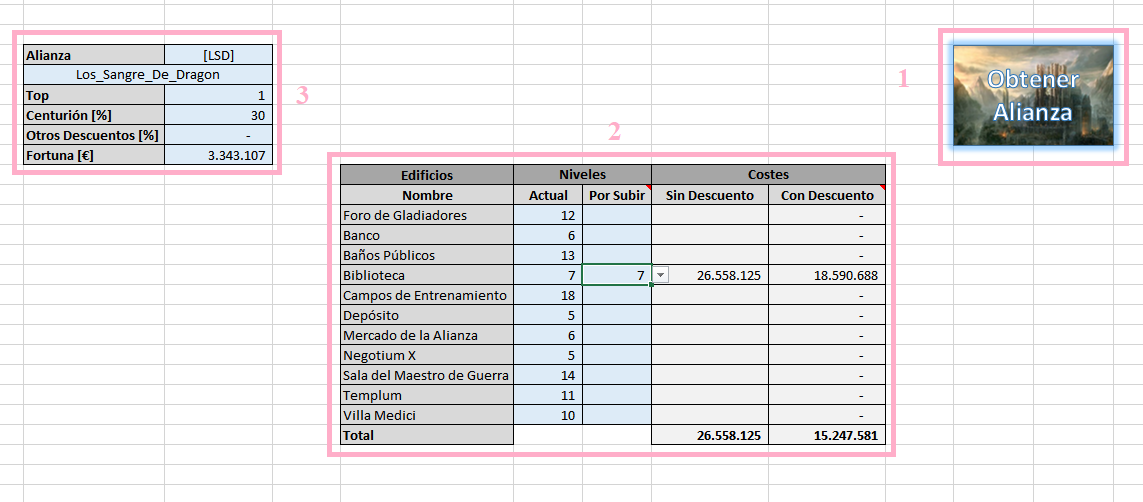
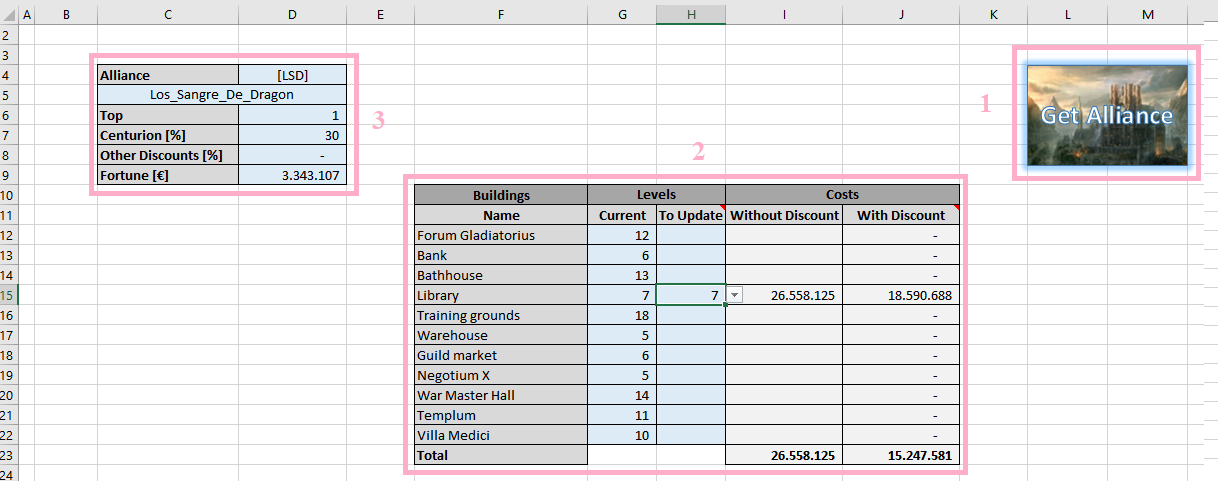
    1 Pressing that button it will be automatically gathered the level of all buildings of the alliance (second column of the table 2). In addition, it will gather the label, name, rank and fortune of the alliance.


    This button will work only with alliances that are at least top 50.


    2 In the third column have to be introduced the number of levels we want to upgrade that specific building. For example, we already have the Forum at level 12 and we want to upgrade it to level 14. Therefore, the number that we should introduce is 2.


    In the fourth column it is displayed the total amount of required gold.


    In the fifth column it is subtracted the centurion discount and ‘other discounts’ ( it could come upgrading discounts events in the future) to the total amount of gold displayed in the fourth column. Now the total amount of gold to be donated is shown in bold at the lower right hand corner of the table (in this cell is also subtracted the fortune of the alliance). The amount of gold shown in this cell is the amount that will be used in Members Sheet.


    3 The centurion discount and Other Discounts must be placed by hand. The button 1 will not gather this information.


    Other


    When several alliances want to donate. From reserve alliances, for example.


    1 Create a copy of the Excel. Open both books (In case it is not possible, just make sure their names are not the same).


    2 Run the ‘Get Members’ button in both Excels.


    3 In just one Excel push the ‘Add Member’ button (Members Sheet).


    4 Copy and paste from Excel 2 to Excel 1 all members and their levels (Only second and third columns).


    5 Push ‘List Members’ button.

    Guide


    Cover Sheet


    Cover.PNG?dl=0


    1 Clicking on it, the language of the book can be changed.


    Members Sheet


    MembersSheet.png?dl=0


    1 It have to be introduced the link shown by the navigator when one is in the page of the alliance where all alliance members are displayed. As an example, to see which page we are referring to, this Excel has already a link included, so it can be pasted on the navigator to see which link is needed. Without the proper link, none of the macros of this Excel will work.


    2 This table is used to calculate how much should pay each member according to their level. In the image, a multiplier of 1 have been assigned to lv100+. Therefore, in the table 6, every level100+ contained in the column called level is multiplied by 1 obtaining the adapted level (forth column of the table6). Another example, a multiplier of 0.5 is assigned to members from levels 90 to 99, so Waw0197 (level99) have an adapted level = level * multiplier = 99 * 0.5 = 50. The result will be always rounded up.


    To consider members below an X level, should be written a multiplier in the last row of the table2, yet, be careful though none of the rows in the middle should be empty, otherwise the calculations will not work. A little trick to avoid this issue is to copy a same level and multiplier several times to fill all the empty cells of the table until get to the last row. The row we really want to fill.


    3 In the first row of this table, in the light grey cell can be seen the total amount of gold that should be paid by the alliance to upgrade a building. This amount is returned by coding. In case one want to introduce this amount by hand, can do so writing it on the blue cell at the right hand.


    In the second row can be seen the donation per level or the unitary donation. This amount is obtained from dividing the total donation by the addition of all the member’s adapted level.


    Finally, to calculate the total donation that should be paid by each alliance member (fifth column of table6), it is multiplied the unitary donation by the adapted level of each member.


    4 Button, ‘Add Member’, add more members at the bottom of the table 6. This button is useful in case it is needed to add some more members from the outside of the alliance (from a reserve alliance, for example)


    Button ‘List Members’, this button is used to sort members from the highest level to the lowest. This button is ideal to be used when we have already added more members using the ‘Add Members’ button.


    5 By clicking on that button it will be automatically gathered all members of the alliance, the link to their profiles and also their levels. Alter that the information is show in the table 6. This button uses the link introduced before (point 1).


    6 Table 6:


    Excluded column: Introduce an ‘X’ to avoid that member to donate. Alter that, the amount of gold that should be paid by each member will be automatically recalculated.


    Members and Level columns: both columns can be edited by hand even though they are not blue painted.


    Paid Column: Here can be written all payments that each member have already done. With a right click, an user form will be displayed. Every amount introduced in this form will be added to the amount that already were in that cell. It can also be introduced negative amounts.


    When the payments done by each member are equal to the total amount of gold to be paid, the fonts of the payments will be green painted.


    In case the amount paid is more that the amount of gold to be paid, then, the fonts will be bold green painted. In addition, the difference between the amount to be paid and the amount already paid will be shown in the next column (Overpaid Column).


    Buildings Sheet


    BuildingSheet.png?dl=0


    Every blue painted cell can be edited either by hand or by macro.


    1 Pressing that button it will be automatically gathered the level of all buildings of the alliance (second column of the table 2). In addition, it will gather the label, name, rank and fortune of the alliance.


    This button will work only with alliances that are at least top 50.


    2 In the third column have to be introduced the number of levels we want to upgrade that specific building. For example, we already have the Forum at level 12 and we want to upgrade it to level 14. Therefore, the number that we should introduce is 2.


    In the fourth column it is displayed the total amount of required gold.


    In the fifth column it is subtracted the centurion discount and ‘other discounts’ ( it could come upgrading discounts events in the future) to the total amount of gold displayed in the fourth column. Now the total amount of gold to be donated is shown in bold at the lower right hand corner of the table (in this cell is also subtracted the fortune of the alliance). The amount of gold shown in this cell is the amount that will be used in Members Sheet.


    3 The centurion discount and Other Discounts must be placed by hand. The button 1 will not gather this information.


    Other


    When several alliances want to donate. From reserve alliances, for example.


    1 Create a copy of the Excel. Open both books (In case it is not possible, just make sure their names are not the same).


    2 Run the ‘Get Members’ button in both Excels.


    3 In just one Excel push the ‘Add Member’ button (Members Sheet).


    4 Copy and paste from Excel 2 to Excel 1 all members and their levels (Only second and third columns).


    5 Push ‘List Members’ button.

    Guía


    Hoja Portada


    Guia_Portada.PNG?dl=0


    1 Pulsando, se puede cambiar el idioma del libro.


    Hoja Miembros


    Guia_Miembros.png?dl=0


    1 Hay que insertar el enlace que muestra nuestro navegador (Chrome, Firefox, etc) cuando estamos en la página de la alianza donde se muestran todos los miembros de la misma. Como ejemplo, se puede copiar el enlace que ya viene incluido en el libro para ver a que página hace referencia este punto. Sin este enlace ninguna de las macros va a funcionar.


    2 Esta tabla sirve para ajustar lo que cada miembro tiene que pagar según su nivel. En el ejemplo, los niveles 100 o más, tienen un multiplicador de 1. Lo que significa que en la tabla del punto 6 el nivel real (tercera columna de la tabla 6) se multiplica por 1 dando como resultado lo que se muestra como Nivel adaptado (cuarta columna de la tabla 6). Siguiendo con el ejemplo para niveles de entre 90 y 99 el multiplicador es de 0.5, por lo tanto, Waw0197 va a tener como nivel adaptado = nivel real * multiplicador = 99 * 0.5 = 50. Como se puede ver, se redondea al alza.


    Si se quisiera que para niveles de X o menos haya otro multiplicador habría que hacer uso de la última y penúltima fila de esta tabla. Pero ojo, no pueden haber filas intermedias vacías, por lo tanto, como truco se puede introducir en varias filas tanto el mismo nivel como el mismo multiplicador hasta llegar a las últimas filas que son las que nos interesan.


    3 En la tabla 3 se puede ver, en la primera fila la donación total a realizar en gris clarito. Esta donación viene calculada desde la hoja Edificios, y es un valor devuelto por una macro. En caso de querer introducir un valor a mano, se podrá hacer rellenando la celda azul que hay justo al lado.


    En la segunda fila se ve la donación por nivel, o la donación unitaria. Este valor se obtiene de dividir la donación total a realizar entre la suma de todos los niveles adaptados de todos los miembros.


    Para calcular la donación total que tiene que hacer cada miembro, se multiplica por tanto el nivel adaptado por el precio unitario.


    4 El botón ‘+Miembros’ añade más miembros al final de la tabla. Esto sirve por si hay más miembros de fuera de la alianza (quizás canteras) que tengan que participar en la donación.


    El botón ‘Ordenar’, ordena de más nivel a menos nivel todos los miembros. Esto es algo que tiene sentido hacerse tras haber introducido jugadores haciendo uso del botón ‘+Miembros’.


    5 Obtiene de forma automática y a golpe de click todos los miembros de una alianza, sus niveles y el enlace a sus perfiles y lo vuelca en la tabla 6. Este botón hace uso del enlace introducido en el punto 1.


    6 En la tabla 6:


    Columna Excluidos: Al escribir una X, ese miembro no será considerado para la donación. Básicamente pagará 0 de oro. Con cada X introducida, lo que tenga que donar el resto de miembros es reajustado.


    Columnas Miembros y Nivel, aunque no estén pintadas de azul, ambas admiten que se introduzcan valores a mano.


    Columna Pagos: Se apunta manualmente lo que va pagando cada miembro. Si se pulsa click derecho aparece un formulario. Todas las donaciones que se introduzcan en él, se suman a lo que ya había previamente en dicha celda. Si se introduce con signo menos, pues se resta. Así se evita el uso de calculadoras.


    Cuando los pagos hechos coinciden con lo que debía donar el miembro, los números se vuelven verde clarito.


    Si la donación realizada supera a la donación que tenía que hacer, entonces se vuelve verde oscuro y además la cantidad que ha donado de más aparece en la última columna.


    Hoja Edificios


    Guia_Edificios.png?dl=0


    Todas las celdas pintadas de azul también admiten introducir valores a mano.


    1 De forma automática y haciendo uso del enlace introducido en la hoja miembros, se obtiene de forma automática el nivel de todos los edificios de la alianza (segunda columna de la tabla 2). Además, obtiene la etiqueta de la alianza, su nombre, su rankin y su fortuna (tabla 3).


    Este botón solo funciona para alianzas que estén dentro del top50 del servidor.


    2 En la tercera columna se introduce el número de niveles que queremos subir. Por ejemplo: Tengo el foro al nivel 12, y lo quiero subir al 14. Pues entonces en la tercera columna hay que introducir un 2 (porque quiero subir el foro 2 niveles)


    En la cuarta columna se da el precio total de la mejora.


    En la quinta columna se resta al precio total el descuento por centurión y ‘Otros Descuentos’ (que podrían ser futuros eventos). La suma total a donar es mostrada en la esquina inferior derecha en negrito. Es la suma de todos los costes ya con los descuentos hechos y con la fortuna actual de la alianza ya restada a dicho valor. El valor contenido en esta celda será el que se use para calcular cuánto tiene que donar cada miembro. Éste valor es el que se describió en el punto 3 de la hoja ‘Miembros’.


    3 El descuento por centurión y otros descuentos son valores que siempre van a tener que ser introducidos a mano. El botón 1, no los devuelve.


    Casos Especiales


    Donando varias alianzas o canteras


    1 Crear una copia del libro y abrir los dos libros (en caso de que no deje hay que renombrar uno de ellos).


    2 Ejecutar en ambos libros la macro para recolectar a los miembros y sus niveles.


    3 En el libro en que se vaya a calcular la donación, ejecutar el botón de ‘+Miembros’.


    4 Copiar y pegar las columnas de miembros y niveles.


    5 Pulsar ‘Ordenar’.

    Admin’s Book


    Last Version: 4.1


    Description


    This Excel Book has been specially designed to the administrators of the alliances. This application automatically gets the name and level of all alliance members, it also gets the fortune and the level of all buildings. With all of it and a couple of customizable parameters, one can calculate how much should be paid by each alliance member to update the planned buildings.


    Prerequisites


    • Operating System: Windows.
    • Software: Microsoft Office (Excel).


    Limitations


    Label, name, ranking position and fortune of the alliance can only be obtained from alliances that are at least top 50. For all the rest alliances, those fields should be fulfilled by hand.


    Enable Macros


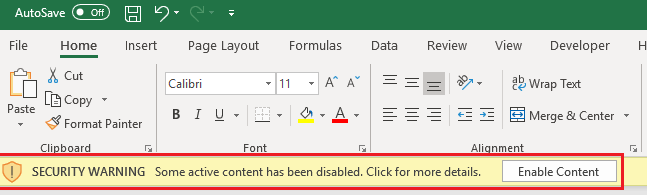
    A message will be displayed when this book is opened. Click on enable content.


    EnableContent.PNG?dl=0


    Required Link


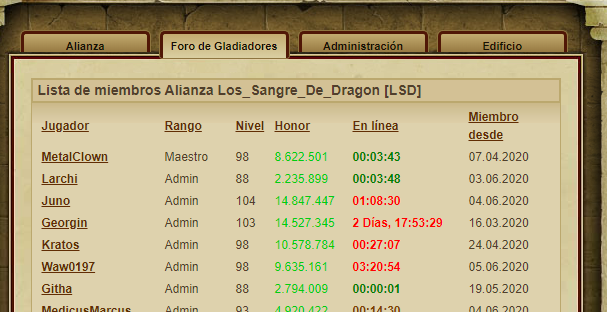
    This application will ask for the link provided for your navigator when you are in the alliance member page:


    EJ: https://s37-es.gladiatus.gamef…de7544c1e1b6b14a47e329120


    Miembros.png?dl=0


    Download Link v4.1


    Download Link v4.0


    Download Link v3.4